
Introduction
Walk into any gaming hardware store and you will see keyboards advertising 1000Hz, 4000Hz, or even 8000Hz polling rates. Manufacturers claim these numbers deliver faster response times and competitive advantages. But when you look at what professional players actually use, the picture changes completely.
Most esports pros run 1000Hz keyboards. Not 4000Hz. Not 8000Hz. Just regular 1000Hz. This article explains why that matters, what the numbers actually mean, and which polling rate you need for your specific games and hardware.
What is Keyboard Polling Rate?
Polling rate measures how many times per second your keyboard reports its status to your computer. When you press a key, your keyboard does not instantly notify your PC. Instead, your computer “polls” (asks) the keyboard for updates at regular intervals.
A keyboard set to 1000Hz sends 1,000 status reports every second. A keyboard set to 125Hz sends only 125 reports per second. The difference between those two numbers determines how quickly your computer registers your key presses.
Polling Rate and Input Delay
Every polling rate creates a specific maximum delay between pressing a key and your computer detecting that press:
| Polling Rate | Reports Per Second | Maximum Input Delay | Best For |
|---|---|---|---|
| 125 Hz | 125 | 8 ms | Office keyboards, budget boards |
| 250 Hz | 250 | 4 ms | Entry-level gaming |
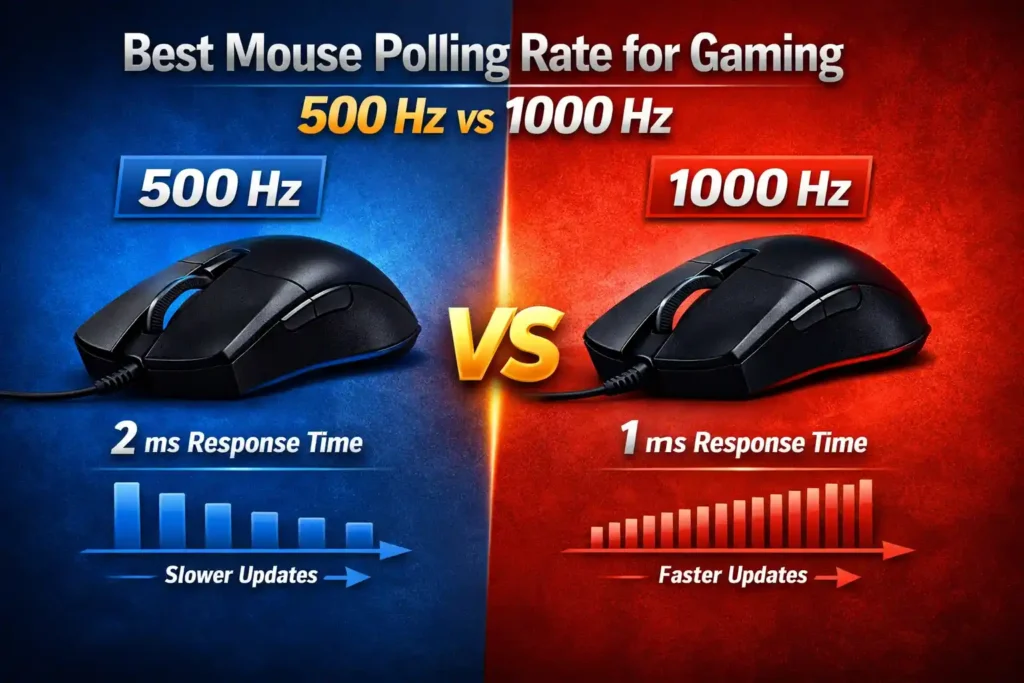
| 500 Hz | 500 | 2 ms | Mid-tier gaming, wireless keyboards |
| 1000 Hz | 1,000 | 1 ms | Competitive esports standard |
| 2000 Hz | 2,000 | 0.5 ms | High-end wired gaming |
| 4000 Hz | 4,000 | 0.25 ms | Enthusiast tier |
| 8000 Hz | 8,000 | 0.125 ms | Marketing spec, minimal real benefit |
The jump from 125Hz to 1000Hz cuts input delay by 7 milliseconds. That difference is noticeable and measurable. The jump from 1000Hz to 8000Hz cuts delay by less than 1 millisecond a difference most players cannot perceive during actual gameplay.
500Hz vs 1000Hz vs 8000Hz — The Honest Comparison
500Hz: The Practical Middle Ground
500Hz delivers 2ms maximum input delay. For most gaming scenarios, this performs well. Wireless gaming keyboards often default to 500Hz because it balances responsiveness with battery life. If you play MOBAs, strategy games, or casual FPS titles, 500Hz handles those workloads without issue.
Who should use 500Hz:
- Players using wireless keyboards who want longer battery life
- Casual gamers playing slower-paced titles
- Users with older systems where higher polling rates cause CPU overhead
1000Hz: The Competitive Standard
1000Hz is the polling rate 90% of professional esports players use. It delivers 1ms maximum input delay, which sits well below human reaction time (150-250ms average). Modern CPUs handle 1000Hz polling without breaking a sweat, and almost every gaming keyboard manufactured after 2020 supports it.
Why pros choose 1000Hz:
- Proven reliability across all games and systems
- Zero compatibility issues
- No CPU overhead on modern hardware
- Measurably faster than 500Hz without diminishing returns
The gap between 500Hz and 1000Hz is noticeable in fast-paced competitive games. The gap between 1000Hz and anything higher becomes theoretical rather than practical.
8000Hz: Marketing Hype or Real Advantage?
8000Hz keyboards report 8,000 times per second, creating a theoretical 0.125ms maximum input delay. Manufacturers market this as “8x faster than 1000Hz” or “instant response.” The reality is more complicated.
Why 8000Hz rarely matters:
Your other hardware creates bigger delays. Even with an 8000Hz keyboard, your monitor refresh rate, game engine processing, and network latency add far more delay than the 0.875ms you save by upgrading from 1000Hz. A 60Hz monitor updates every 16ms. A 144Hz monitor updates every 7ms. Your keyboard’s extra 0.875ms of speed disappears into those much larger delays.
Firmware and switch quality matter more. A well-tuned 1000Hz keyboard with quality switches and optimized firmware delivers lower total latency than a poorly-made 8000Hz board. The MCU (microcontroller unit) quality, debounce algorithm, and scan rate all affect your actual input lag more than raw polling rate.
CPU overhead becomes real. Running 8000Hz forces your CPU to process eight times more keyboard interrupts per second compared to 1000Hz. On mid-tier systems or while streaming, this extra load can cause frame drops or stuttering making your gameplay worse, not better.
Most games cannot utilize it. Game engines process input at fixed tick rates. Valorant runs at 128 tick. CS2 runs at 64 tick (subtick system). Your 8000Hz keyboard sends updates far faster than the game can read them, making most of those reports useless.
When 8000Hz actually helps:
- You own a 360Hz or 540Hz monitor
- You play rhythm games like OSU where frame-perfect timing matters
- Your CPU is high-end (i9-13900K or Ryzen 9 7950X3D or better)
- You already eliminated every other source of input lag in your system
For everyone else, 8000Hz is a spec sheet number that delivers no meaningful performance gain over 1000Hz.
Why Most Pros Use 1000Hz (Not 8000Hz) — Real Data
Survey the keyboards used at major esports tournaments and you will find the same pattern: almost everyone runs 1000Hz polling rate.
Pro Player Polling Rate Database
| Player | Game | Keyboard | Polling Rate |
|---|---|---|---|
| TenZ | Valorant | Wooting 60HE | 1000 Hz |
| aspas | Valorant | Wooting 60HE | 1000 Hz |
| s1mple | CS2 | SteelSeries Apex Pro | 1000 Hz |
| ZywOo | CS2 | Logitech G Pro X | 1000 Hz |
| Bugha | Fortnite | SteelSeries Apex Pro TKL | 1000 Hz |
| Clix | Fortnite | Wooting Two HE | 1000 Hz |
| HisWattson | Apex Legends | Logitech G915 TKL | 1000 Hz |
| Vaxlon | OSU | Wooting 60HE | 1000 Hz |
These players compete at the absolute highest level where every millisecond theoretically matters. They have access to unlimited budgets and the latest hardware. Yet they choose 1000Hz keyboards over 8000Hz alternatives.
The reason is simple: 1000Hz works. It delivers fast enough input with zero compatibility issues, no CPU overhead, and proven tournament reliability. Professional players do not chase spec sheets. They chase consistency and results.
The Science: Polling Rate vs Scan Rate vs Firmware
Understanding keyboard latency requires looking beyond polling rate alone. Three separate systems combine to determine your total input delay:
Scan Rate
Scan rate measures how often your keyboard’s internal microcontroller checks the physical key matrix to detect key presses. This happens before polling rate even enters the picture.
A keyboard with 1000Hz scan rate checks its keys 1,000 times per second. A keyboard with 8000Hz scan rate checks 8,000 times per second. Higher scan rates detect key presses faster, which reduces the chance that a press happens right after a scan and has to wait for the next cycle.
Critical point: Scan rate and polling rate are independent. You can have a 8000Hz scan rate with 1000Hz polling rate, or vice versa. Marketing materials often confuse these two numbers deliberately to inflate performance claims.
Debounce Algorithm
When you press a mechanical key, the metal contacts bounce against each other multiple times in the first few milliseconds. A good debounce algorithm filters out these false signals without adding unnecessary delay.
Cheap keyboards use time-based debounce: they ignore all input for X milliseconds after detecting a press. This adds guaranteed delay. Quality keyboards use smart debounce algorithms that detect bounce patterns without blanket delays.
A keyboard with 8000Hz polling but poor debounce logic delivers worse latency than a 1000Hz keyboard with optimized debounce.
Firmware Quality
Your keyboard’s firmware processes scans, applies debounce, handles anti-ghosting, and prepares USB reports. Well-written firmware executes these tasks in under 1ms total. Poorly optimized firmware can add 5-10ms of delay regardless of your polling rate setting.
This is why established brands like Wooting, Razer, and Logitech often outperform unknown manufacturers claiming higher specs. Their firmware engineering matters more than their polling rate numbers.
Total Input Latency Formula
Total Keyboard Latency = (Scan Rate Delay) + (Debounce Time) + (Firmware Processing) + (Polling Rate Delay) + (USB Transfer Time)
Polling rate is one component of five. Optimizing only polling rate while ignoring the other four delivers minimal improvement.
Game-by-Game Polling Rate Guide
Different games have different input requirements. Here is what actually matters for each major esport:
Valorant
Recommended: 1000Hz
Valorant runs at 128 tick rate, which means the server updates game state 128 times per second (every 7.8ms). Your keyboard polling at 1000Hz sends updates every 1ms — fast enough to catch every server tick with room to spare.
Going to 8000Hz (0.125ms) provides zero additional benefit because the game engine processes input far slower than your keyboard reports it. Save your money and stick with 1000Hz.
CS2 (Counter-Strike 2)
Recommended: 1000Hz
CS2 uses Valve’s subtick system which interpolates input timing between 64Hz server ticks. In theory, higher polling rates could provide slightly better subtick accuracy. In practice, network latency (15-50ms) and monitor refresh delay (7-16ms) dwarf any polling rate gains above 1000Hz.
Professional CS2 players universally use 1000Hz. If it is good enough for players competing for million-dollar prizes, it is good enough for you.
Fortnite
Recommended: 1000Hz
Fortnite’s build mechanics and edit speed create rapid input sequences where polling rate could theoretically matter. However, the game’s network architecture (30 tick servers) and building animation delays make keyboard polling rate largely irrelevant.
Top Fortnite pros focus on switch actuation speed and key consistency over polling rate. A keyboard with fast mechanical or optical switches at 1000Hz outperforms a mediocre board at 8000Hz every time.
Apex Legends
Recommended: 1000Hz
Apex runs at 60 tick (16.6ms per update). Your 1000Hz keyboard reports every 1ms, giving the game 16 fresh data points per tick cycle. Going higher provides no advantage — the game cannot process the extra reports.
Movement tech in Apex (tap-strafing, super-glides) depends more on timing consistency than raw polling speed. A stable 1000Hz connection beats an unstable 8000Hz connection every single time.
OSU (Rhythm Games)
Recommended: 1000Hz minimum, 2000-8000Hz beneficial
OSU is the one competitive game where ultra-high polling rates provide measurable advantages. The game requires frame-perfect inputs where 0.125ms differences actually matter.
Top OSU players often use 2000Hz or 4000Hz keyboards. Some use 8000Hz. However, even in OSU, input timing consistency matters more than raw polling rate. A perfectly-tuned 1000Hz board with zero jitter outperforms an inconsistent 8000Hz board.
Can Your System Handle 8000Hz? Testing Before Buying
If you are considering an 8000Hz keyboard, test your system first. High polling rates increase CPU usage, and on mid-tier systems this can cause performance problems.
System Requirements for 8000Hz
Minimum specs:
- CPU: Intel i5-12600K / AMD Ryzen 5 7600X or better
- USB: USB 3.0 or USB 3.1 port (USB 2.0 caps at 1000Hz)
- OS: Windows 10 version 1803 or newer
- Available CPU headroom: 5-10% free during gaming
Ideal specs:
- CPU: Intel i7-13700K / AMD Ryzen 7 7800X3D or better
- USB: Dedicated USB 3.1 Gen 2 port
- OS: Windows 11
- No background processes eating CPU cycles
How to Test Your System
Step 1: Check your current CPU usage during gameplay. Open Task Manager (Ctrl+Shift+Esc), play your main game for 10 minutes, and note your CPU usage percentage.
Step 2: If your CPU runs above 85% during gameplay, do not buy an 8000Hz keyboard. The additional polling overhead will cause frame drops and stuttering.
Step 3: If your CPU stays below 70% during gameplay, your system can likely handle 8000Hz without issues.
Step 4: Verify your USB ports. USB 2.0 physically cannot support polling rates above 1000Hz. Check your motherboard manual to identify which ports run USB 3.0 or higher.
Wireless Keyboard Polling Rate Reality
Wireless keyboards face limitations that wired keyboards do not. Understanding these restrictions prevents buying keyboards that cannot deliver their advertised polling rates.
2.4GHz Wireless Keyboards
Modern gaming wireless keyboards use proprietary 2.4GHz wireless protocols (Logitech Lightspeed, Razer HyperSpeed, Corsair Slipstream). These connections support up to 1000Hz polling rate with minimal latency overhead.
Performance comparison:
- Wired 1000Hz: 1ms polling delay, 0ms connection overhead, 1ms total
- 2.4GHz wireless 1000Hz: 1ms polling delay, 0-1ms connection overhead, 1-2ms total
The difference is negligible. Top-tier wireless gaming keyboards match wired performance at 1000Hz.
Cannot exceed 1000Hz: Even the best 2.4GHz wireless keyboards cap at 1000Hz. The wireless protocol cannot sustain higher data rates without introducing connection instability or massive battery drain.
Bluetooth Keyboards
Bluetooth keyboards run different wireless protocols optimized for power efficiency rather than speed.
Bluetooth limitations:
- Maximum polling rate: 125Hz (some reach 250Hz)
- Latency: 5-15ms connection overhead
- Stability: Variable, affected by interference
- Battery life: Excellent (months on single charge)
Never use Bluetooth keyboards for competitive gaming. The 125Hz polling rate (8ms delay) and variable latency make Bluetooth keyboards unsuitable for any game where timing matters. Save Bluetooth keyboards for office work, typing, and casual single-player games.
USB Requirements for High Polling Rates
Your keyboard connects through USB, and the USB standard version limits maximum polling rate.
| USB Standard | Maximum Polling Rate | Release Year |
|---|---|---|
| USB 2.0 | 1000 Hz | 2000 |
| USB 3.0 (3.1 Gen 1) | 8000 Hz | 2008 |
| USB 3.1 (3.1 Gen 2) | 8000 Hz+ | 2013 |
| USB 3.2 | 8000 Hz+ | 2017 |
USB 2.0 physically cannot support polling rates above 1000Hz. If you buy an 8000Hz keyboard and plug it into a USB 2.0 port, your keyboard automatically falls back to 1000Hz maximum.
How to identify USB 3.0 ports:
- Color coding: USB 3.0 ports often use blue or red plastic inside the port
- Symbol: Look for “SS” (SuperSpeed) symbol next to the port
- Motherboard manual: Check which ports support USB 3.0+
Best practice: Plug gaming keyboards into rear motherboard USB ports. Front panel USB ports often run through hubs that add latency and limit bandwidth.
How Polling Rate Affects Different Switch Types
Your keyboard’s switch technology interacts with polling rate in ways that affect your actual input lag.
Mechanical Switches
Traditional mechanical switches (Cherry MX, Gateron, Kailh) have physical actuation and debounce requirements that add 1-3ms of delay regardless of polling rate. Running these switches at 8000Hz provides minimal benefit because the switch hardware itself cannot respond faster than 1-2ms.
Ideal polling rate for mechanical: 1000Hz
Optical Switches
Optical switches use light beams instead of metal contacts. They actuate faster (0.2ms typical) and need zero debounce time because there are no bouncing contacts. These switches benefit more from higher polling rates than mechanical switches do.
Ideal polling rate for optical: 1000-2000Hz
Magnetic Hall Effect Switches
Hall effect switches detect key position using magnetic fields. They offer the fastest actuation speeds (0.1ms) and adjustable actuation points. These switches can legitimately benefit from 4000-8000Hz polling because their hardware response time matches the polling speed.
Ideal polling rate for magnetic: 2000-8000Hz
The key insight: Match your polling rate to your switch technology. Running 8000Hz polling with slow mechanical switches wastes CPU cycles processing reports that arrive faster than the switches can generate new data.
When Lower Polling Rate is Better
Higher polling rates are not always better. Several scenarios call for deliberately lowering your keyboard’s polling rate.
Battery Life on Wireless Keyboards
Polling rate directly affects wireless keyboard battery life. A wireless keyboard at 1000Hz drains battery roughly 8x faster than the same keyboard at 125Hz.
Battery life by polling rate (approximate):
- 125 Hz: 3-6 months per charge
- 500 Hz: 2-4 weeks per charge
- 1000 Hz: 1-2 weeks per charge
If you use your wireless keyboard for typing and casual gaming, drop to 500Hz. You extend battery life significantly while keeping input lag low enough for non-competitive games.
CPU Overhead on Older Systems
High polling rates increase CPU interrupt handling. On systems with older CPUs (pre-2018) or during CPU-intensive tasks like streaming or video encoding, high polling rates can cause performance issues.
Symptoms of polling rate CPU overhead:
- Frame drops during intense gameplay
- Stuttering when many keys are pressed simultaneously
- Higher CPU usage in Task Manager with keyboard plugged in
Solution: Drop to 500Hz or 1000Hz maximum on older systems.
Compatibility with Older Software
Some legacy games and applications do not handle high polling rates correctly. Input may feel laggy, keys may register multiple times, or inputs may skip entirely.
Known problematic software:
- Games built on old engines (2010 and earlier)
- DOS emulators and retro game collections
- Some music production software with MIDI keyboard support
- Specific CAD programs with keyboard shortcut mapping
Solution: Create a separate keyboard profile at 125Hz or 500Hz for these applications.
How to Change Your Keyboard Polling Rate
Most gaming keyboards support multiple polling rates. Here is how to switch between them:
Method 1: Manufacturer Software
This is the most common method and works for all major gaming keyboard brands.
Logitech keyboards:
- Open Logitech G HUB software
- Select your keyboard from device list
- Click Settings → Report Rate
- Choose 125Hz, 500Hz, or 1000Hz
- Click Apply
Razer keyboards:
- Open Razer Synapse software
- Select your keyboard
- Navigate to Performance tab
- Find Polling Rate dropdown
- Select desired rate (125Hz, 500Hz, 1000Hz)
- Changes apply immediately
Corsair keyboards:
- Open Corsair iCUE software
- Select your keyboard
- Click Device Settings
- Locate Polling Rate option
- Choose from available rates
- Click Apply
SteelSeries keyboards:
- Open SteelSeries GG Engine (or older Engine 3)
- Select your keyboard
- Click Settings gear icon
- Find Polling Rate option
- Select desired rate
- Changes save automatically
Method 2: Hardware Switches
Some keyboards include physical switches or button combinations to change polling rate without software.
Common methods:
- Physical DIP switches on keyboard bottom
- Fn + F1/F2/F3 key combinations
- Dedicated polling rate button
Check your keyboard’s manual for specific instructions.
Method 3: Onboard Memory Profiles
High-end keyboards store polling rate settings in onboard memory. This allows you to maintain your settings when moving between computers without installing software.
Look for keyboards advertising “onboard memory” or “hardware profiles” if you frequently switch between multiple PCs.
Troubleshooting High Polling Rate Issues
Running high polling rates can sometimes cause problems. Here is how to diagnose and fix them:
Problem: Keys Register Multiple Times (Chatter)
Cause: High polling rates can amplify switch bounce or firmware debounce issues.
Fix:
- Lower polling rate to 1000Hz or 500Hz
- Update keyboard firmware through manufacturer software
- If problem persists, your switches may be failing (hardware issue)
- Contact manufacturer for warranty replacement
Problem: Missed Inputs at High Polling Rate
Cause: CPU cannot keep up with interrupt requests, causing input queue overflow.
Fix:
- Check CPU usage during gameplay (Task Manager)
- If CPU runs above 85%, lower polling rate to 1000Hz
- Close background applications eating CPU cycles
- Update motherboard USB drivers
- Plug keyboard directly into motherboard USB 3.0 port (not hub)
Problem: Keyboard Disconnects Randomly
Cause: USB power delivery issues at high polling rates, or incompatible USB 2.0 ports.
Fix:
- Verify you are using USB 3.0 port (check motherboard manual)
- Try different USB ports on motherboard
- Disable USB selective suspend in Windows power settings
- Update USB drivers from motherboard manufacturer website
- Lower polling rate to 1000Hz if issue persists
Problem: High Input Lag Despite High Polling Rate
Cause: Other factors (firmware, debounce, switch quality) create delay that polling rate cannot fix.
Fix:
- Update keyboard firmware
- Verify you are using wired connection (not Bluetooth)
- Test keyboard on different computer to rule out system issues
- Use our keyboard polling rate test to verify actual reporting rate
- If keyboard tests correctly but still feels slow, issue lies elsewhere in your system
Best Keyboards by Polling Rate Tier
Here are solid keyboard recommendations organized by polling rate capability:
Budget Tier (500-1000Hz) — Under $80
Redragon K617 Fizz — Wireless 1000Hz, hot-swappable switches, $50 Royal Kludge RK84 — Wireless 1000Hz, 75% layout, $60 Keychron V1 — Wired 1000Hz, hot-swap, QMK support, $75
These keyboards deliver reliable 1000Hz performance without breaking the bank. Perfect for most gamers who do not need premium features.
Mid-Tier (1000Hz Premium) — $80-150
Logitech G Pro X — Wired 1000Hz, hot-swap, tournament proven, $120 Razer BlackWidow V4 75% — Wired 1000Hz, optical switches, compact, $140 Keychron Q1 Pro — Wireless 1000Hz, aluminum case, gasket mount, $145
These keyboards offer premium build quality, better switches, and refined typing experience while maintaining reliable 1000Hz polling.
High-End (2000-8000Hz) — $150+
Wooting 60HE — Wired 8000Hz, analog switches, adjustable actuation, $175 Razer Huntsman V3 Pro — Wired 8000Hz, optical switches, programmable, $250 Corsair K70 Max — Wired 8000Hz, magnetic switches, full RGB, $230
These keyboards support ultra-high polling rates and use switch technologies (optical or magnetic) that can actually benefit from them. Only buy if you have a high-end system and 240Hz+ monitor.
Polling Rate vs Monitor Refresh Rate Synergy
Your keyboard polling rate and monitor refresh rate interact to create your total system latency. Understanding this relationship helps you optimize both.
The Math Behind Synergy
Your monitor updates its image at fixed intervals determined by refresh rate:
- 60 Hz monitor: Updates every 16.6ms
- 144 Hz monitor: Updates every 6.9ms
- 240 Hz monitor: Updates every 4.2ms
- 360 Hz monitor: Updates every 2.8ms
Your keyboard reports input at intervals determined by polling rate:
- 125 Hz keyboard: Reports every 8ms
- 500 Hz keyboard: Reports every 2ms
- 1000 Hz keyboard: Reports every 1ms
- 8000 Hz keyboard: Reports every 0.125ms
If your monitor refresh interval is longer than your keyboard polling interval, the extra keyboard speed provides zero visual benefit. Your monitor cannot display the updates fast enough to show them.
Optimal Pairings
| Monitor Refresh Rate | Recommended Keyboard Polling Rate | Why |
|---|---|---|
| 60-75 Hz | 500-1000 Hz | Monitor updates every 13-16ms; keyboard faster than needed |
| 144 Hz | 1000 Hz | Perfect match; keyboard updates faster than monitor |
| 240 Hz | 1000-2000 Hz | 1000Hz sufficient; 2000Hz reduces worst-case latency slightly |
| 360 Hz+ | 2000-4000 Hz | Monitor updates every 2.8ms; higher polling helps consistency |
The key insight: Do not chase 8000Hz keyboards if you run a 144Hz monitor. Your monitor creates 6.9ms of latency that completely dominates the 0.875ms you save with 8000Hz polling. Upgrade your monitor first.
Frequently Asked Questions
What keyboard polling rate do professional players use?
Over 90% of professional esports players use 1000Hz keyboards. Survey data from ProSettings.net shows that in Valorant, CS2, and Apex Legends, the standard is 1000Hz. Very few pros use 8000Hz keyboards despite having access to unlimited budgets. They prioritize reliability and consistency over theoretical spec advantages. If it works for players competing for million-dollar prizes, it works for everyone else.
Is 8000Hz keyboard worth it for competitive gaming?
For 99% of players, no. The jump from 1000Hz to 8000Hz saves less than 1ms of input delay. Your monitor refresh rate, network latency, and reaction time (150-250ms average) create far larger delays that make the keyboard upgrade irrelevant. Only consider 8000Hz if you own a 360Hz+ monitor, play at the highest competitive level, have a top-tier CPU, and have already eliminated every other source of latency in your system. Even then, the benefit is barely measurable.
Can I feel the difference between 500Hz and 1000Hz?
Yes, most competitive players notice the difference in fast-paced games. The jump from 500Hz (2ms delay) to 1000Hz (1ms delay) is perceptible in scenarios requiring rapid key presses like counter-strafing in CS2 or quick edits in Fortnite. The difference is not dramatic, but it is real. Going from 125Hz to 1000Hz is extremely noticeable. Going from 1000Hz to 8000Hz is not.
Does higher polling rate drain more battery on wireless keyboards?
Yes, significantly. Polling rate directly affects battery life because higher rates force the keyboard to transmit data more frequently. A wireless keyboard at 1000Hz drains battery roughly 8x faster than the same keyboard at 125Hz. Most wireless gaming keyboards run 1-2 weeks at 1000Hz versus 3-6 months at 125Hz. If battery life matters more than ultra-low latency, drop your wireless keyboard to 500Hz for a good balance.
How do I know if my keyboard actually runs at 1000Hz?
Use our free keyboard polling rate test to verify your actual reporting rate. Press keys repeatedly and watch the live Hz reading. Software settings do not always reflect reality USB port limitations, outdated drivers, or hardware issues can cap your effective polling rate below what your software claims. Testing confirms your keyboard performs as expected.
Does polling rate matter for typing and office work?
No. For typing documents, browsing the web, or general productivity work, anything above 125Hz feels identical. Human typing speed and reaction time create far more delay than keyboard polling rate. A 125Hz keyboard reports every 8ms while average typing intervals between keys sit around 200-300ms. Save high polling rates for gaming where split-second timing actually matters.
Will 8000Hz polling work on my old computer?
Maybe not. High polling rates increase CPU usage because your processor must handle more keyboard interrupts per second. If your CPU already runs above 80% during gaming, adding 8000Hz polling can cause frame drops and stuttering. Check your CPU usage in Task Manager while gaming. If you have less than 15% free CPU headroom, stick with 1000Hz or lower. Also verify you have USB 3.0 ports — USB 2.0 physically cannot support polling above 1000Hz.
What is the difference between polling rate and scan rate?
Polling rate measures how often your keyboard reports to your computer via USB. Scan rate measures how often the keyboard’s internal microcontroller checks its key matrix for new presses. These are separate systems. A keyboard can have 8000Hz scan rate but only 1000Hz polling rate, or vice versa. Marketing materials deliberately confuse these numbers. Both matter, but scan rate happens first (detecting the press) while polling rate happens second (reporting to PC).
Can I use 8000Hz polling with Bluetooth keyboards?
No. Bluetooth protocol caps at 125Hz maximum (some reach 250Hz). The wireless standard prioritizes power efficiency over speed. Only 2.4GHz wireless gaming keyboards (Logitech Lightspeed, Razer HyperSpeed) can reach 1000Hz, and even those cannot exceed 1000Hz wirelessly. If you want 8000Hz, you need a wired connection through USB 3.0.
Does polling rate affect how my keyboard feels?
Not directly. Switch type, actuation force, and keycap quality determine how a keyboard feels under your fingers. Polling rate only affects input lag the delay between pressing a key and your computer registering that press. A keyboard with terrible switches at 8000Hz still feels terrible to type on. A keyboard with excellent switches at 500Hz feels great. Focus on switch quality first, polling rate second.
Should I use the same polling rate for my mouse and keyboard?
Not necessarily. Your mouse and keyboard face different input requirements. Most players benefit from 1000Hz on both, but your mouse polling rate matters slightly more because mouse movement requires higher temporal precision than key presses. If your system struggles with CPU overhead, drop your keyboard to 500Hz and keep your mouse at 1000Hz. Test your mouse polling rate here.
How much CPU does 8000Hz polling actually use?
Typical measurements show 8000Hz keyboards increase CPU usage by 2-5% compared to 1000Hz on modern processors (2020+). This sounds small, but on systems already running near capacity during gaming or streaming, that extra 5% can push CPU usage into thermal throttling territory or cause frame drops. The impact varies by CPU generation, motherboard chipset, and USB controller quality. Test before buying an 8000Hz keyboard if you run a mid-tier system.
The Bottom Line: Which Polling Rate Should You Actually Use?
For competitive gaming on modern hardware: 1000Hz. This delivers 1ms input delay, runs on any USB 2.0 or better port, causes zero CPU overhead, and works flawlessly with every game. It is the proven standard used by esports professionals worldwide. For wireless keyboards balancing performance and battery: 500Hz.
This gives you 2ms input delay (still excellent) while extending battery life from 1-2 weeks to 2-4 weeks. Perfect for players who want wireless freedom without constantly recharging. For ultra-competitive players with high-end systems and 360Hz monitors: 2000-4000Hz.
This provides theoretical latency improvements that become measurable only when combined with top-tier monitors and hardware. Expect minimal real-world benefit over 1000Hz. For rhythm games, OSU, or niche competitive scenarios: 4000-8000Hz. These specific use cases benefit from frame-perfect timing where sub-millisecond differences actually matter. Requires high-end CPU and USB 3.0.
Avoid 8000Hz if:
- Your monitor is 240Hz or below
- Your CPU usage runs above 70% during gaming
- You play MOBAs, strategy games, or slower-paced titles
- You want the longest possible battery life on wireless keyboards
Your keyboard’s polling rate matters, but it sits far down the list of factors that actually improve your gameplay. Switch quality, keycap design, layout comfort, and firmware reliability matter more. Get a keyboard with good switches at 1000Hz before chasing 8000Hz marketing specs.
Related Tools:
- Keyboard Polling Rate Test — Verify your actual polling rate
- Mouse Polling Rate Test — Check your mouse Hz
- Reaction Time Test — Measure your reflex speed
- DPI Analyzer — Find your true mouse DPI

PollingRateTester.com provides browser-based testing tools for measuring mouse DPI, polling rate, latency, and other device performance metrics. All tools are tested on real hardware, including USB and Bluetooth mice and high-refresh-rate monitors, to ensure accurate and repeatable results.
The website is maintained by a technical team that regularly updates tools and guides in response to browser, sensor, or firmware changes to keep measurements consistent, precise, and transparent.

Pingback: Is My Mouse Broken? How to Diagnose Common Mouse Problems (2026)