
Introduction
If you have ever pressed a key and felt a tiny delay before anything happens on screen, you have brushed up against polling rate. It is the quiet spec that shapes how quickly your keystrokes are noticed and processed. Gamers care because timing wins fights. Writers and coders care because consistency keeps rhythm and flow.
This guide explains what keyboard polling rate really is, why it changes latency, how it relates to scan rate and sampling rate, and which settings make sense for different users. You will also learn how to change the setting on your keyboard and how to test it without special gear.
What is keyboard polling rate
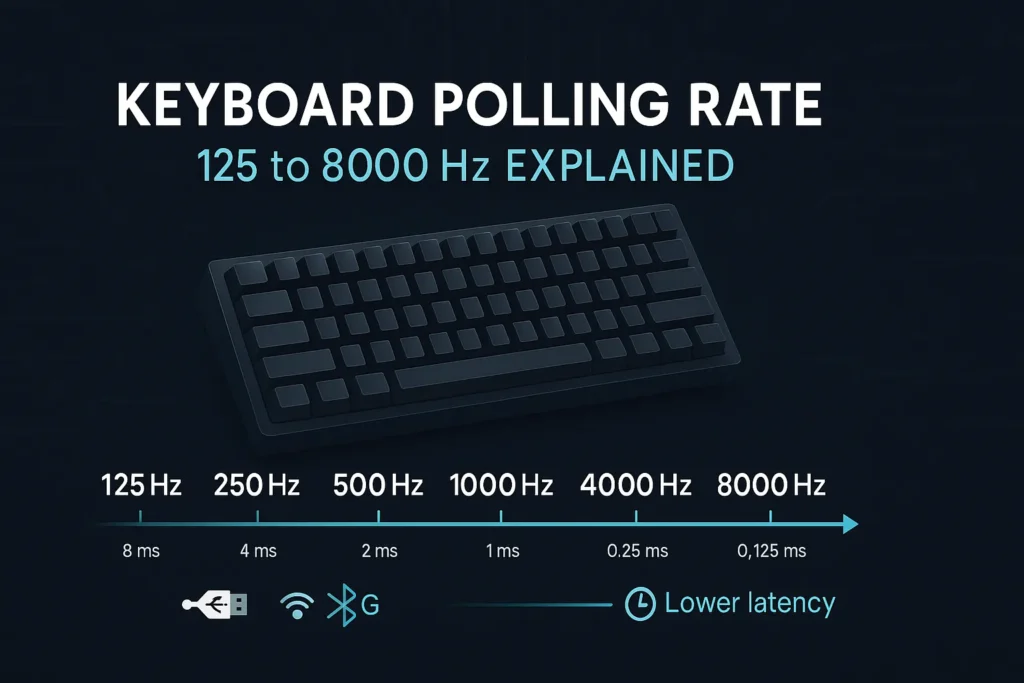
Polling rate is the number of times per second a keyboard sends its key state to the computer. It is measured in hertz which means times per second. A setting of 125 hertz means the keyboard can report one hundred twenty five times each second.
A setting of one thousand hertz means one thousand reports each second. Eight thousand hertz means eight thousand reports in the same time. It is the window of time from one report to the following one, known as the polling interval. Shrink that interval and your press is more likely to be seen sooner.
How polling rate affects input latency
Between two reports there is a small window where your press might land just after a report went out. You then wait for the next one. That wait is the poll interval and about half of it is the average extra delay added by polling. Here are common settings and their theoretical intervals.
- 125 Hz equals about 8 milliseconds
- 250 Hz equals about 4 milliseconds
- 500 Hz equals about 2 milliseconds
- 1000 Hz equals about 1 millisecond
- 2000 Hz equals about 0.5 milliseconds
- 4000 Hz equals about 0.25 milliseconds
- 8000 Hz equals about 0.125 milliseconds
Those figures reflect only one step in the input path. First the keyboard’s controller detects the switch change. Then the operating system queues and processes the event. Finally the game or application reads that input during its per frame update.
The display shows it Polling rate reduces one of the larger and easier to control parts of total latency and it also reduces timing variation from press to press which your hands feel as cleaner rhythm.
Scan rate and sampling rate and debounce time
Three internal specs shape what the keyboard sends to the computer.
- Scan rate
Traditional boards use a matrix of rows and columns. The controller scans that matrix many times per second to see which switches changed. Faster scans reduce the chance that a short press slips between scans and they let the controller confirm a change quickly for the next USB report. - Sampling rate
Magnetic or analog boards use sensors such as Hall effect or TMR to read key position rather than a simple on or off contact. Sampling rate is how often that position is measured. High sampling enables adjustable actuation points and rapid trigger so a key can retrigger as soon as it starts to move upward. - Debounce time
Mechanical contacts can chatter. Debounce is the filter that confirms a press is real. Shorter debounce feels quicker but must still prevent false repeats.
Rapid scanning or sampling plus balanced debounce yields reliable events for USB reporting. A fast poll cannot hide a very slow scan or an overly heavy debounce filter. Good boards tune all three.
Mechanical switches and magnetic switches
Mechanical switches use physical contacts to declare on and off states. With a solid scan rate and reasonable debounce they are excellent at common settings such as one thousand hertz. They also offer the feel many people love.
Magnetic switches add control features. Because the controller reads position, the board can offer per key actuation, analog like behavior in some apps, and rapid trigger that competitive players use for micro corrections and tight counter strafes.
These features benefit from fast sampling internally and from a higher USB poll so the host receives more frequent updates as keys cross the thresholds you choose.
Neither approach is automatically better. What matters is how well the entire input chain is tuned on your specific board.
Wired and wireless behavior
Connection type changes what rates are practical and how stable timing feels.
- Wired
Direct USB paths are the most stable and the easiest way to sustain very high rates. There is no radio hop and no extra encoding or power trade offs. If you want eight thousand hertz and long sessions, wired is the safe choice. - Dedicated 2 point 4 gigahertz receivers
Many gaming boards reach one thousand hertz on this link and some go higher with smart firmware. Keep the receiver in clear view and avoid stacking too many radios in one port cluster to maintain clean results. - Bluetooth
Bluetooth favors flexibility and battery life. It schedules packets across many devices which adds timing variance and lowers effective rates. It is perfect for travel and office work. It is not ideal for strict competitive play.
Wireless boards also draw more power as rates climb because the radio transmits more often. On battery a mid range setting such as five hundred often provides the best balance of snap and endurance.
Do higher polling rates always help
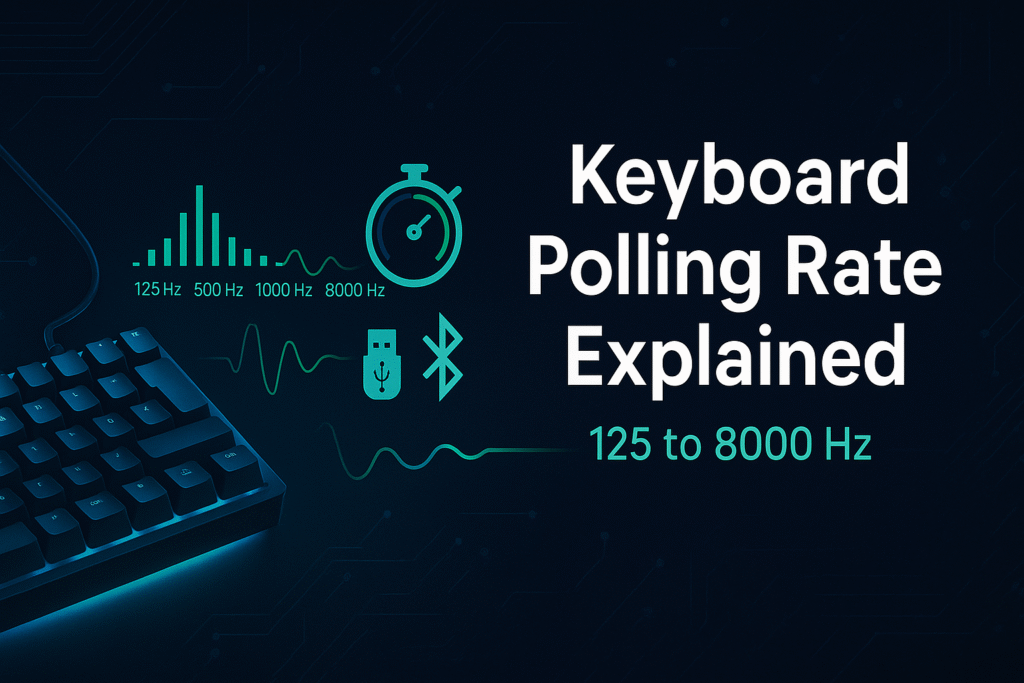
There is a clear improvement going from 125 to 500 to 1000. At that point the poll interval is one millisecond and most users are very happy. Moving from 1000 to 2000 or 4000 or 8000 trims fractions of a millisecond and further tightens timing variance.
The benefit is real but smaller and it shows most when the rest of the system is clean. High and stable frame rate, a display running in a fast mode, little background load, and a keyboard with fast scan or sampling and sensible debounce. In that context very high rates can make repeated taps and releases feel razor consistent.
If you play competitive shooters or strict rhythm titles and your board supports a higher rate, test it. If you write, code, or play slower paced games, one thousand is already excellent.
CPU work and stability
Higher rates mean more frequent USB interrupts and more host processing. On modern desktops the extra work is tiny. On older machines or laptops with heavy background tasks you might see brief spikes during intense scenes. Practical setup choices help.
- Use a quality data cable and a direct rear motherboard port
- Avoid daisy chaining hubs when chasing the highest rates
- Turn off input grabbing overlays before you start playing
- Use a balanced or high performance power plan while gaming so the CPU wakes quickly when input arrives
How to choose the right polling rate
Match the setting to your primary use and then validate on your machine.
- Esports and aim training
Use the highest stable rate your board and port support. Pair it with a high refresh display and consistent frame pacing. Focus on stability during long sessions. - Fast shooters and action games
At one thousand hertz or higher you get consistent strafing, smooth weapon swaps, and dependable timing on ability binds. - Rhythm games and timing heavy tasks
One thousand or higher can smooth repeats and releases. Consistency often matters more than the smallest average number. - MMO and casual play
Five hundred to one thousand feels instant and friendly to power and system load. - Typing and productivity
Five hundred or one thousand is more than enough. Comfort, layout, and noise matter more than shaving tenths of a millisecond. - Laptop on battery
Five hundred offers a good balance of snap and endurance. On Bluetooth, one hundred twenty five or two hundred fifty improves consistency and battery life.
How to change your polling rate
There are three common paths.
Manufacturer software
Most gaming keyboards expose a selector for 125, 250, 500, 1000, and sometimes higher values. Apply the setting, save it to an onboard profile if available, then replug the cable to confirm.
Keyboard shortcuts
Some boards let you cycle rates with a function key combo. Check the quick start card or product page and look for an indicator pattern that confirms the current setting.
Open firmware tools
Keyboards that support VIA or QMK may allow polling changes in the configurator or through a firmware flash. Make a backup before you change anything and follow vendor guides carefully.
How to test your keyboard latency
You can learn a lot with simple tools.
- Browser based key to screen tests
These show the distribution of delays from press to a visible change. Run each rate for a few minutes. Look for a lower average and a tighter spread as you raise the rate. If the average drops but the spread grows, the path is not stable. - Real play tests
Load a familiar map or song. Practice quick A and D counter strafes, tap firing, and repeated ability cancels. Monitor your rhythm and confirm it remains steady over a ten to fifteen minute session. Stability matters more than a screenshot. - Advanced validation
If you want to validate at the protocol level you can capture USB traffic with a protocol analyzer and confirm intervals. That is optional and not required for daily use.
Troubleshooting missed inputs and jitter
Treat latency as a chain and tune each link.
- Inside the keyboard
Update firmware to the latest stable release. If your software allows it, avoid overly aggressive debounce settings. For magnetic boards verify that sampling and rapid trigger are not fighting your technique. - USB path
Move the cable to a different rear port. Use a short, quality cable. Remove unpowered hubs from the path. - Operating system
Close overlays that use global hooks. Disable unused device software during play. Set a power plan that allows quick wake and boost. - Game and display
Match the frame cap to what your system can hold. Use a fast display mode that avoids extra processing. ower intensive post processing if it makes frame time uneven. - Wireless specifics
Keep the receiver close and in clear view. Move it away from crowded USB clusters. Replace weak batteries. Keep metal obstacles and other radios away from the line between board and host.
Frequently asked questions
Does a higher polling rate change how fast I can type?
A higher keyboard polling rate doesn’t increase typing speed. It only reduces the delay between reports, making key repeats and short taps feel smoother.
Is one thousand hertz enough for competitive play?
A 1000Hz keyboard polling rate is enough for competitive gaming. Many pros use it for its stable latency, while higher rates like 8000Hz offer smaller timing gains if your system supports them.
Can wireless match wired at the same rate?
A wireless keyboard polling rate can nearly match wired at 2.4GHz. But encoding and radio steps add slight variance, so wired keyboards remain more consistent for competitive play.
Why does Bluetooth feel less responsive?
Bluetooth keyboard polling rate is lower because it prioritizes power efficiency and shared connections. This design adds delay and makes Bluetooth feel less responsive for gaming.
What else matters besides polling?
Besides keyboard polling rate, factors like switch type, debounce time, scan rate, controller quality, and game engine processing also affect input latency. Polling rate is key, but not the only performance factor.
Why gamers prefer keyboards with high polling rates?
High keyboard polling rate reduces input lag and improves key accuracy. In fast-paced esports, milliseconds matter 8000Hz keyboards like Razer Huntsman V2 or Wooting 60HE give smoother performance and faster reaction times, boosting competitive gameplay.
What is the best keyboard polling rate for CS2?
The best polling rate for CS2 (Counter-Strike 2) is 1000Hz or higher. It minimizes input delay, improving reaction time and precision. Many pros use Wooting, Razer, or Logitech G Pro keyboards with stable 1000Hz–8000Hz polling rate support.
How to calculate or measure keyboard polling rate manually?
You can use a Keyboard Polling Rate Calculator or software monitor. Measure how many signals per second your keyboard sends via USB. Divide 1000 ms by the average interval between key reports to estimate your polling frequency in Hz.
How to check keyboard polling rate in Windows 10 or laptop?
Use a Keyboard Polling Rate Inspector or an online polling rate checker. Press keys and observe the Hz readings. Most Windows 10 laptops and desktops support 125Hz–1000Hz; gaming keyboards can reach up to 8000Hz USB polling rate.
Does keyboard polling rate matter for everyday use?
For normal typing or office work, polling rate has minimal impact. However, gamers and coders benefit from faster response and lower input lag with high polling rate keyboards. It ensures smoother key registration during intense gameplay or rapid typing.
What’s the difference between 1000Hz and 8000Hz keyboard polling rates?
A 1000Hz polling rate reports every 1 ms, while 8000Hz sends updates every 0.125 ms. The 8000Hz keyboard polling rate gives ultra-low latency but requires strong CPU support. It’s noticeable mainly in competitive gaming or precision-based tasks.
How to change Razer Keyboard Polling Rate settings?
Open Razer Synapse, go to your keyboard’s device settings, and locate the polling rate option. Select from available choices 125Hz, 500Hz, or 1000Hz polling rate. Apply changes to instantly improve responsiveness for gaming or typing performance.
How to test your Keyboard Polling Rate online?
You can use a Keyboard Polling Rate Test or Keyboard Polling Rate Checker tool online. These tools show real-time data of your keyboard’s signal frequency in Hz. Just press any key repeatedly, and the tester displays the current polling rate performance instantly.
Final word
Polling rate quietly shapes how your keyboard feels every time you press a key. Understanding the number behind the spec helps you make smarter choices and tune your setup for clean rhythm and fast feedback.
Start with one thousand hertz on a stable path. If your hardware supports higher settings, test them on your own machine. The right choice is the one that stays consistent in real play with your hands on the keys.

PollingRateTester.com provides browser-based testing tools for measuring mouse DPI, polling rate, latency, and other device performance metrics. All tools are tested on real hardware, including USB and Bluetooth mice and high-refresh-rate monitors, to ensure accurate and repeatable results.
The website is maintained by a technical team that regularly updates tools and guides in response to browser, sensor, or firmware changes to keep measurements consistent, precise, and transparent.

Great article, thank you for sharing these insight.
Great article! I really appreciate the way you explained everything so clearly – it feels like you put a lot of effort into making it useful for readers. I’ve been exploring different tools and resources myself, and recently started using, professional webdesigner in bamberg. It’s been a game changer for me, and reading your post actually gave me even more ideas on how to apply it. Thanks for sharing such valuable insights!
Your writing is like a breath of fresh air in the often stale world of online content. Your unique perspective and engaging style set you apart from the crowd. Thank you for sharing your talents with us.